
Customize Storefront And Launch Website In Kejoola
This tutorial guides you through customizing your storefront and launching your website using Kejoola

Josh
Last Update há um ano
1. You will learn how to personalize your site appearance, configure key sections, and publish your changes effectively.
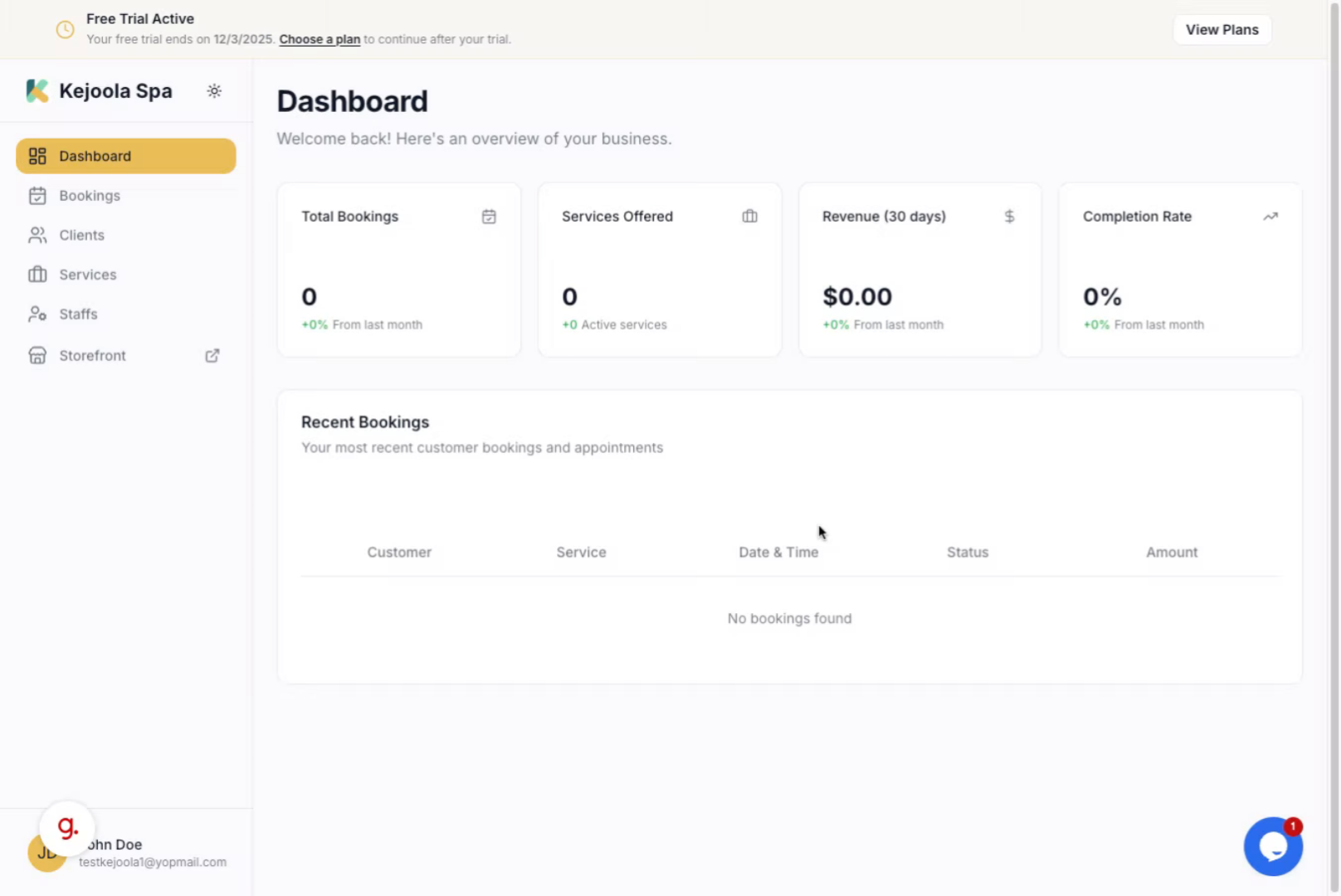
2. Click the Storefront section to begin customizing your website's appearance.
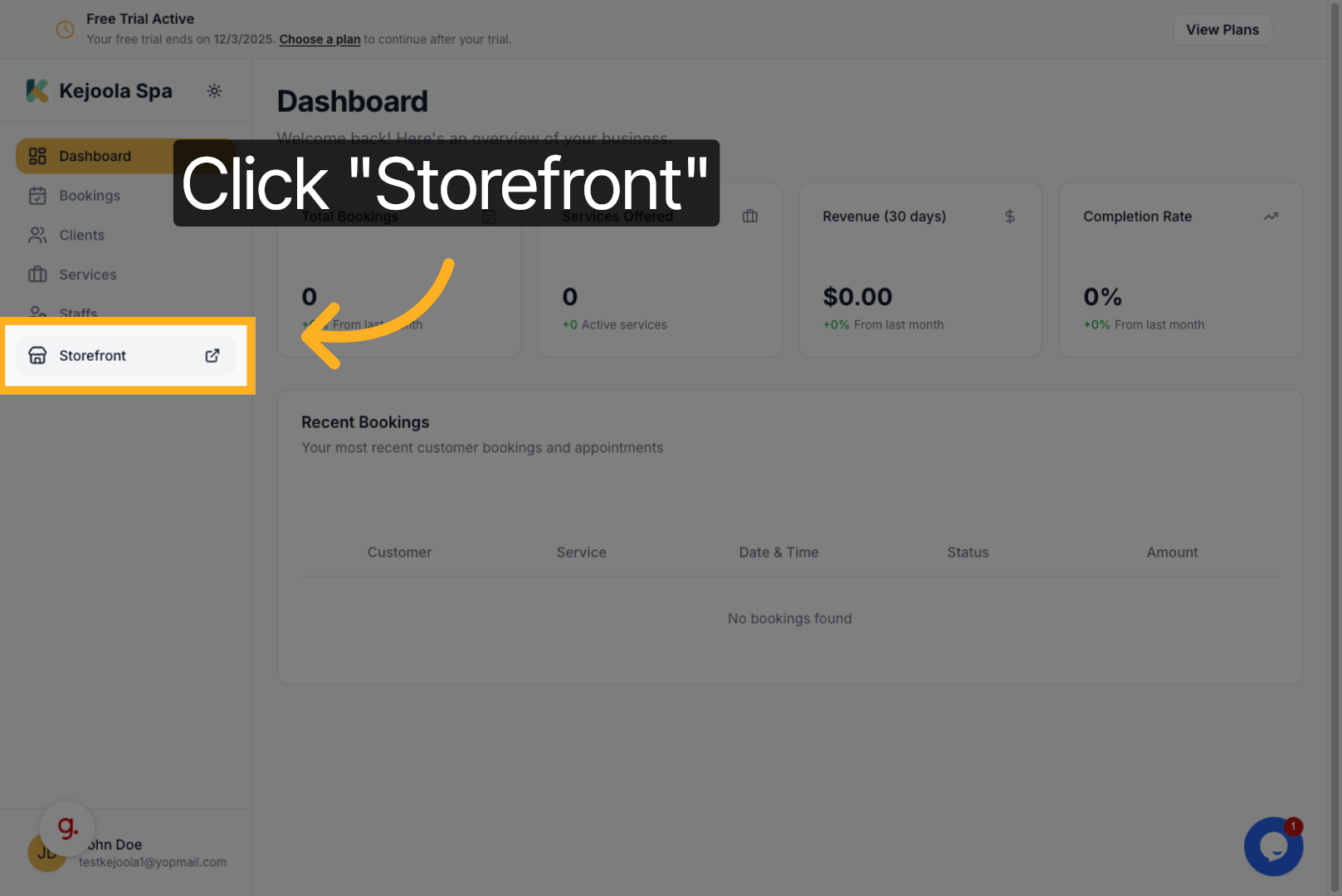
3. To set your website's theme, select from any theme available in the Theme Selection section.
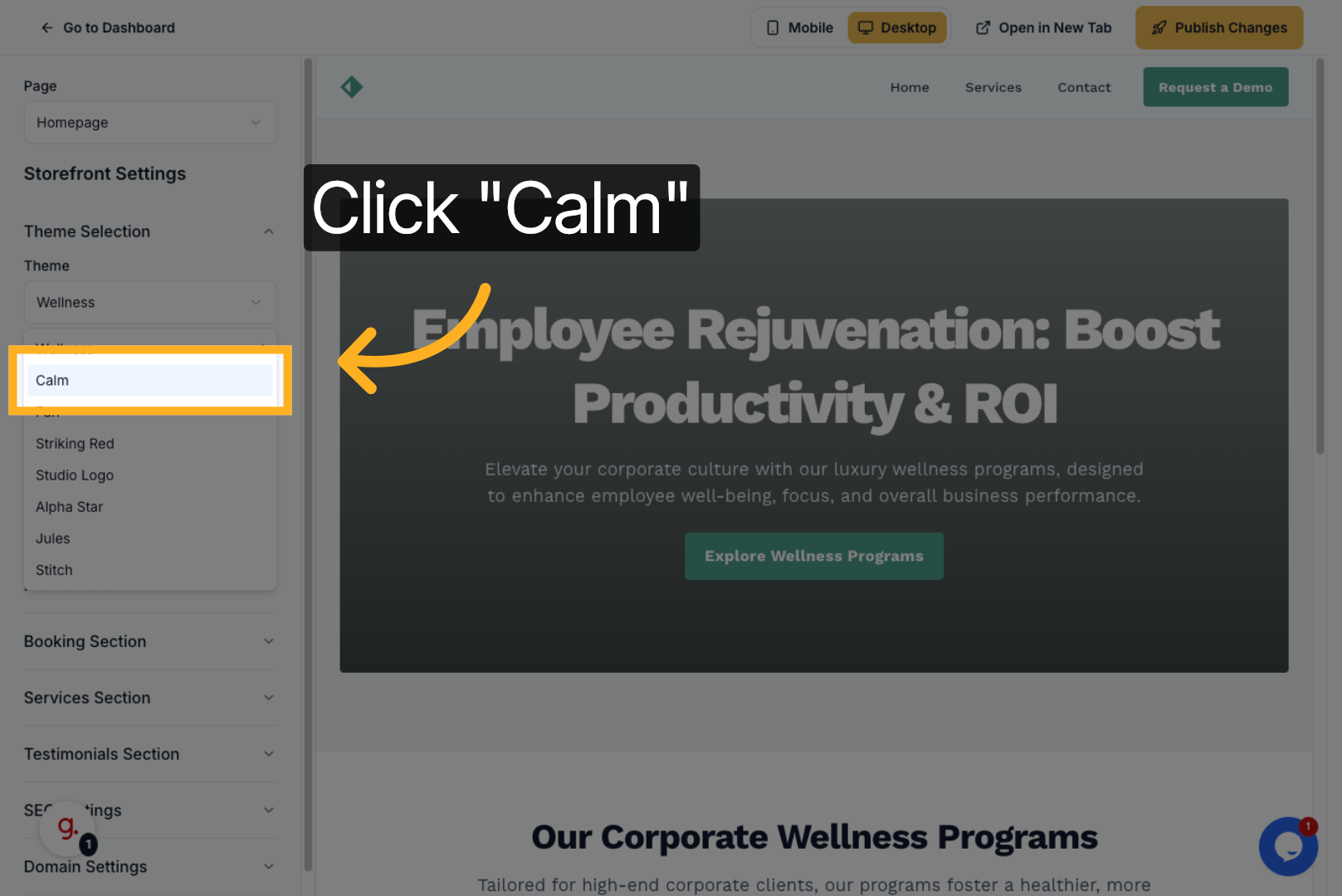
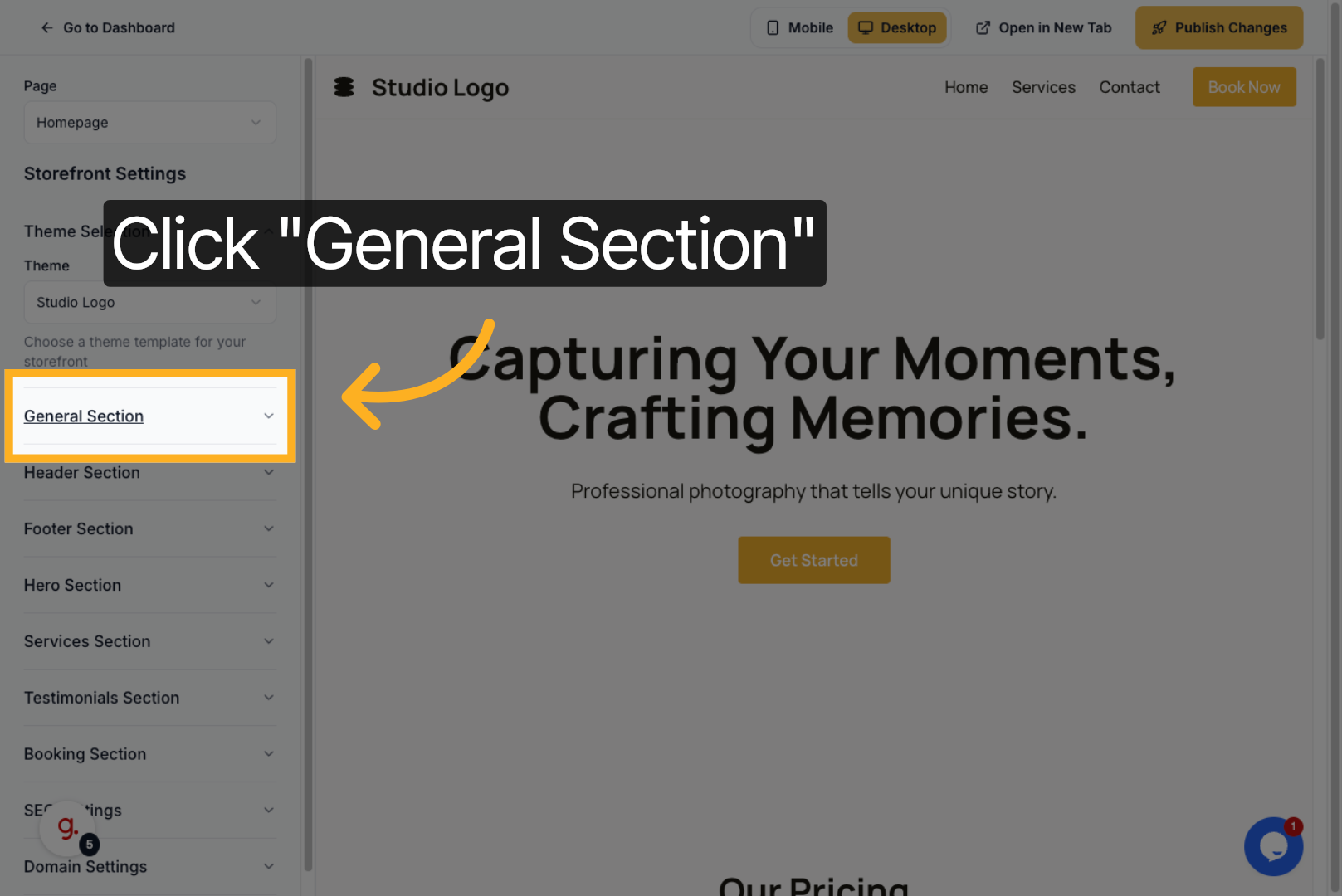
5. Enter your site name to personalize your storefront; for example, enter your business name.
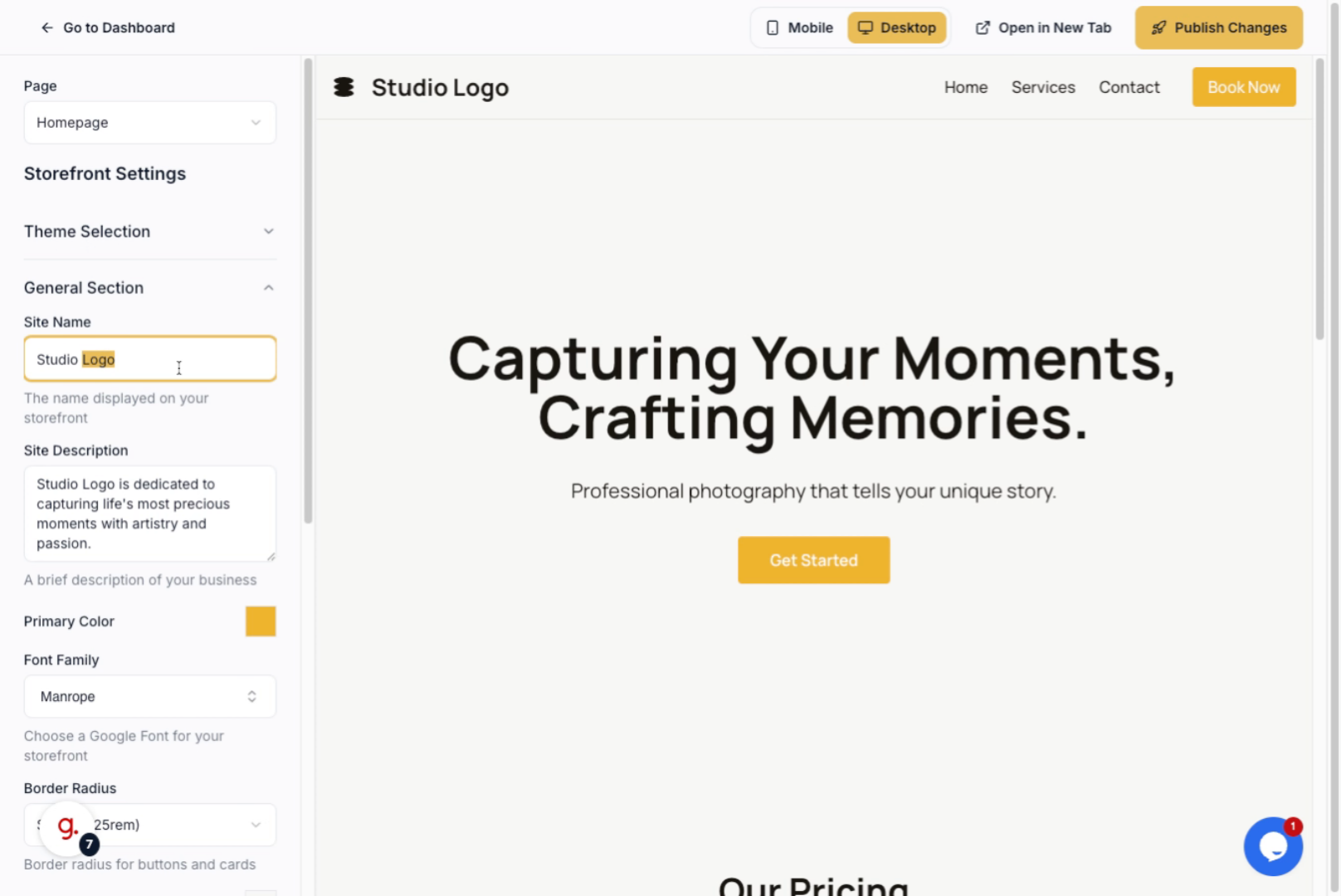
6. Enter a concise description that highlights your site's purpose or offerings.
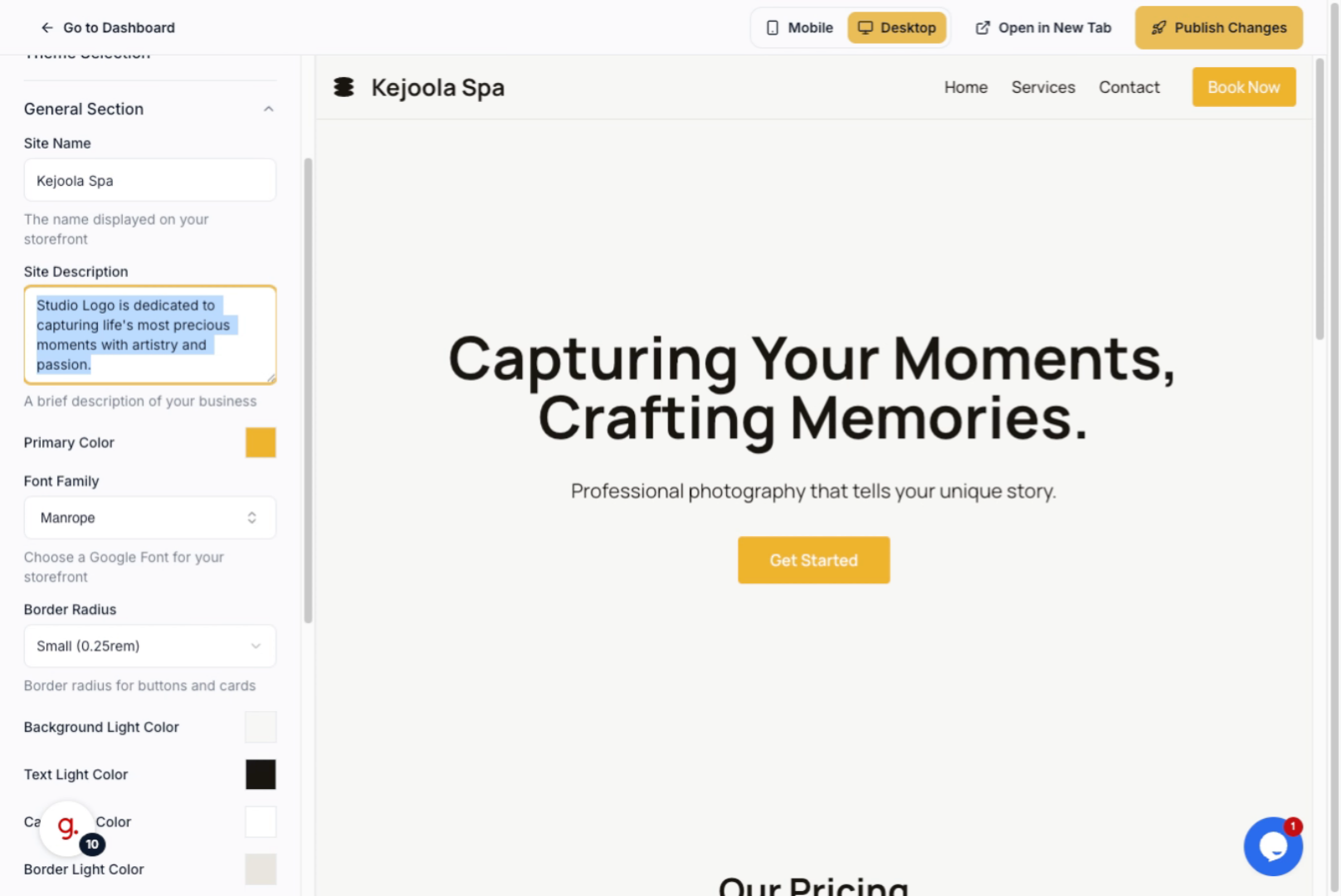
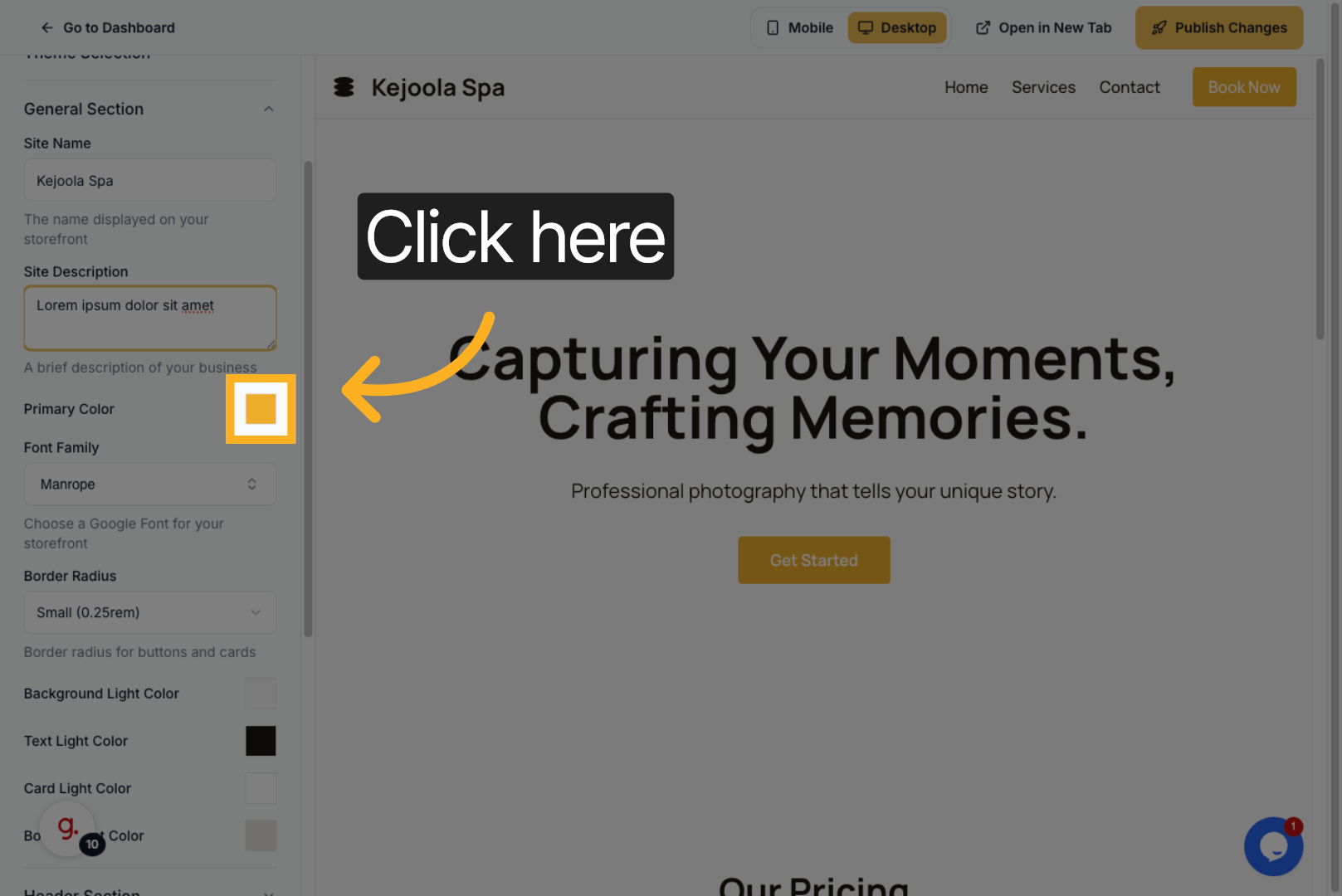
7. You may also change the website's primary color.
8. Click the Header Section to modify the top area of your website.
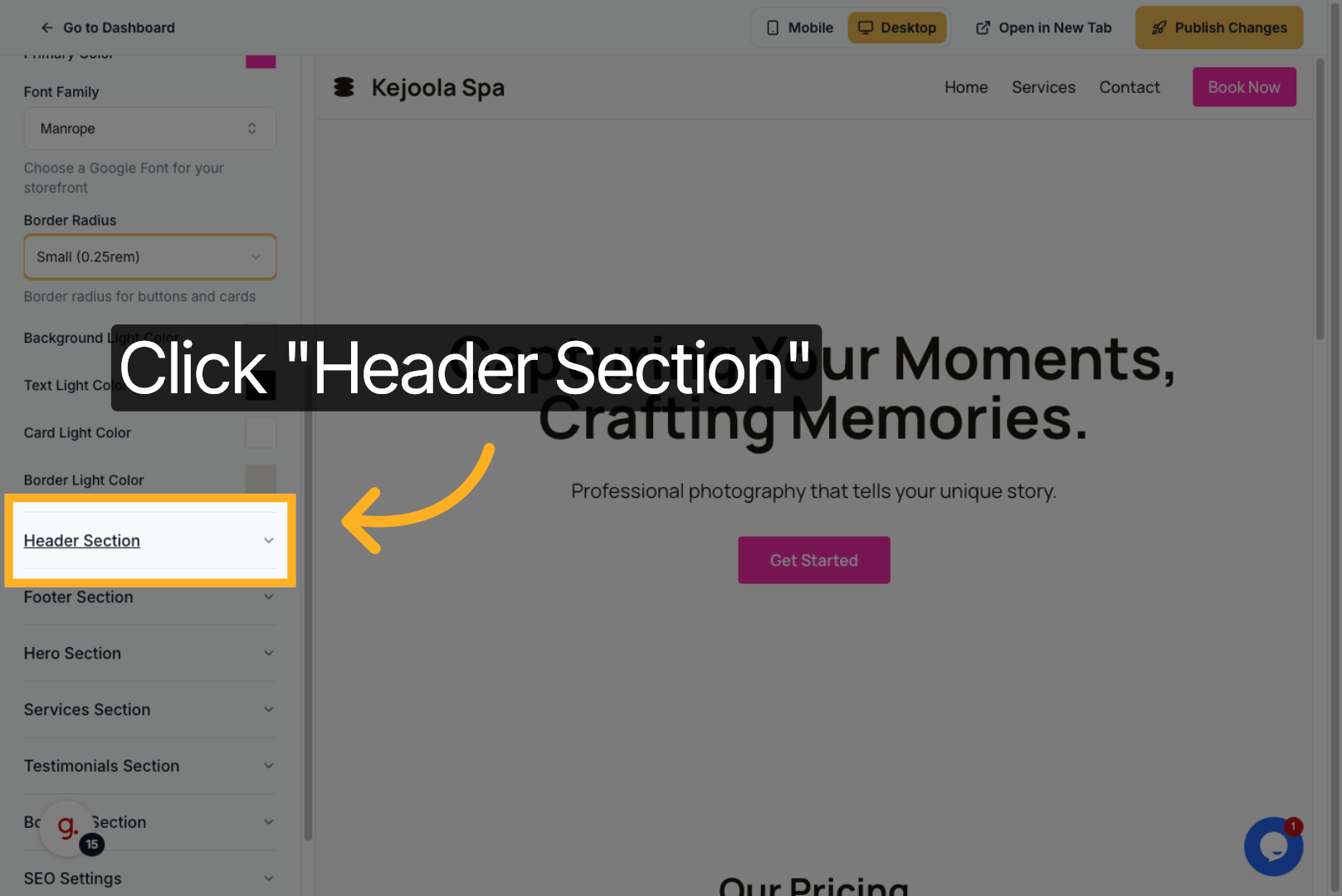
9. Click the upload area to add or drag and drop an image file for your header.
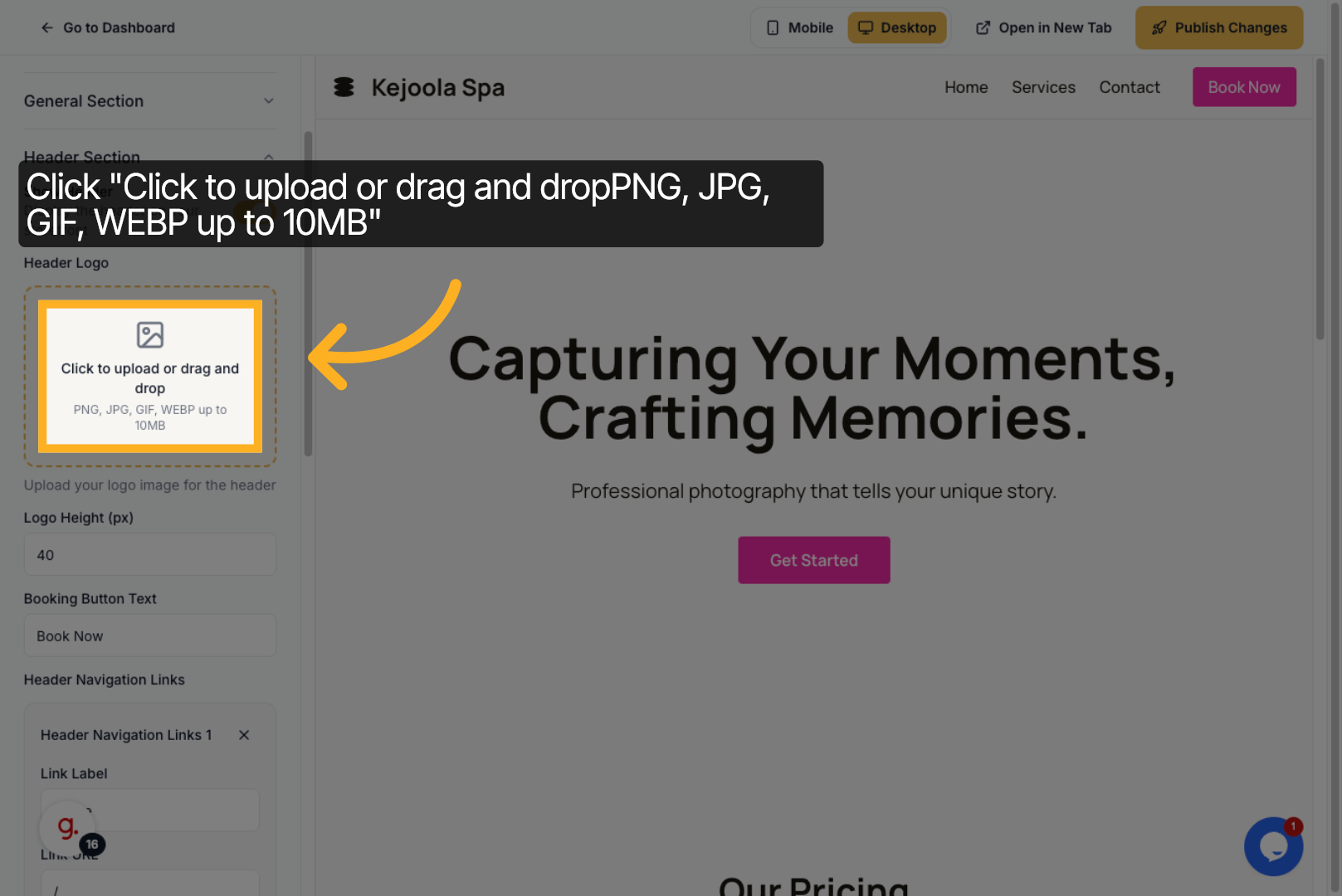
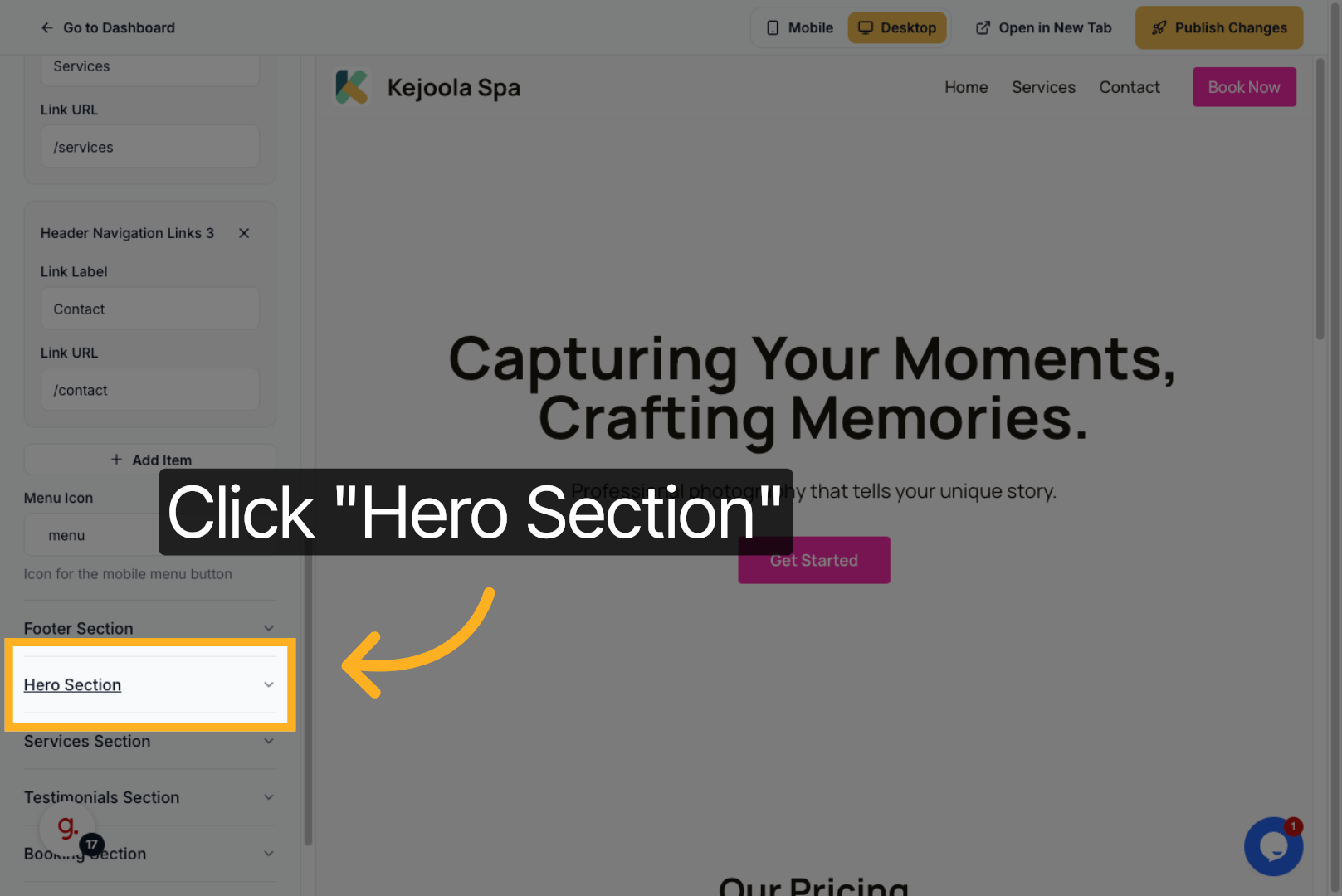
10. Click the Hero Section to customize the main banner area of your storefront.
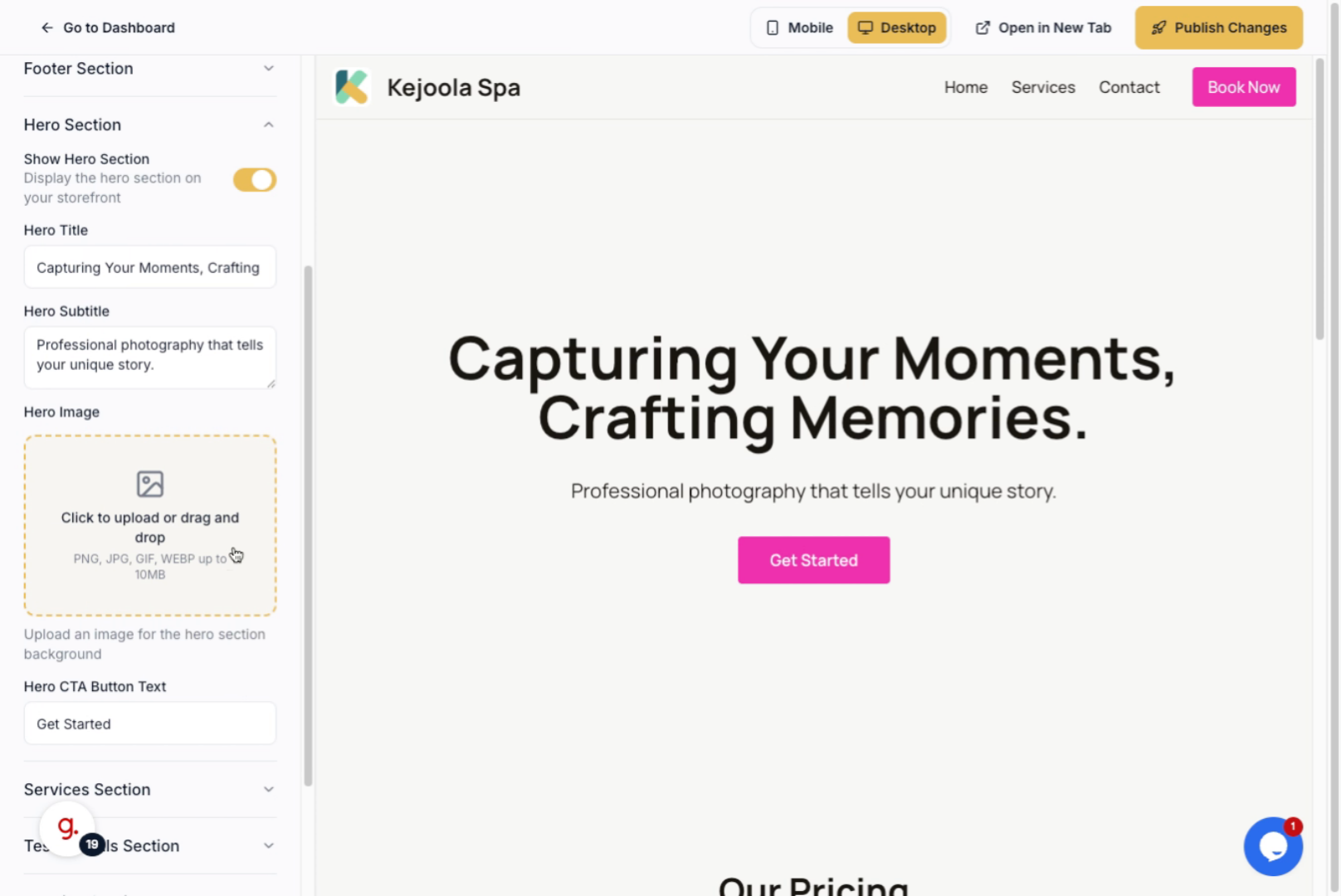
11. Choose the image file from your computer to upload it to the hero section.
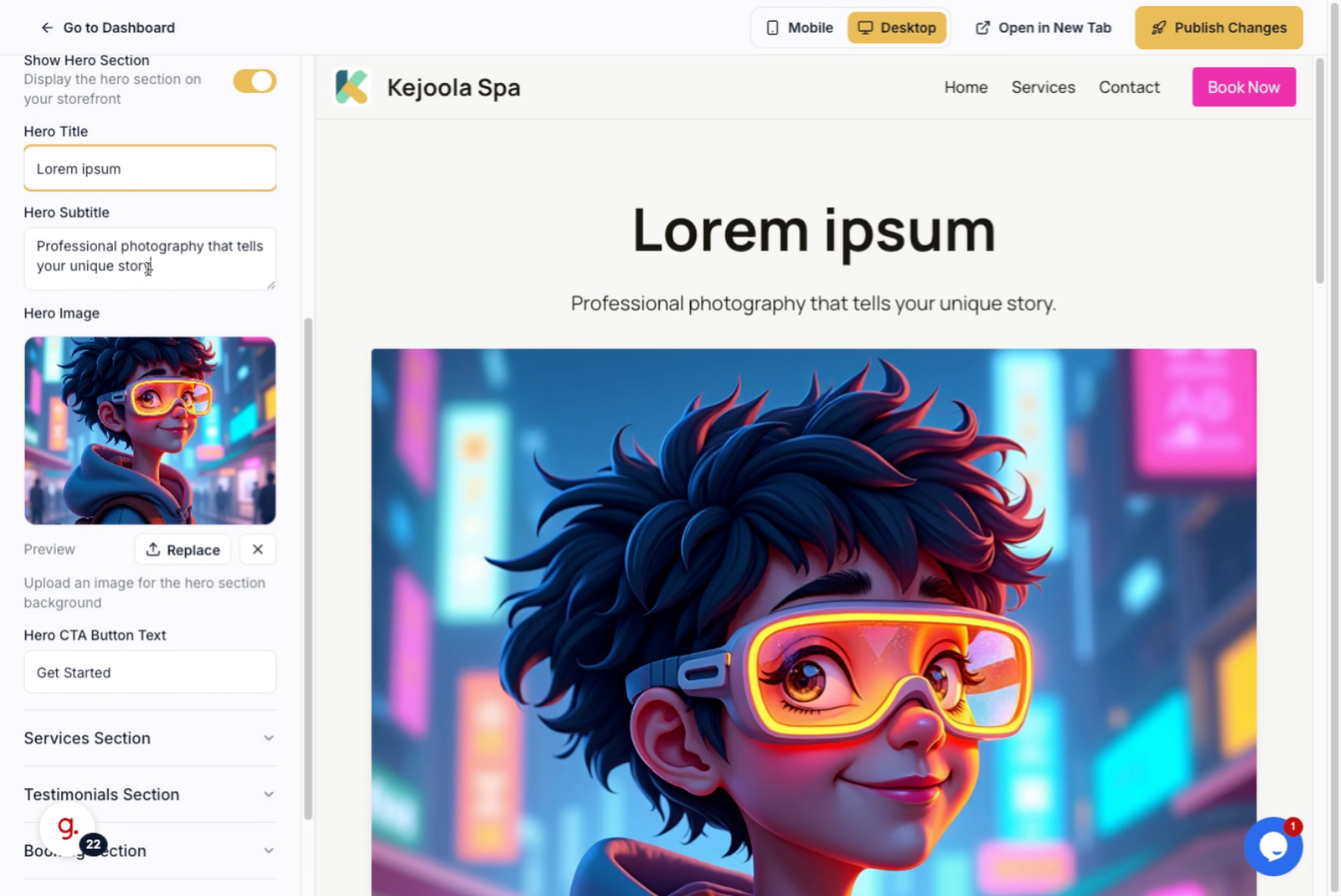
12. Enter a compelling title to capture visitors' attention in the hero section.

13. Enter a subtitle that complements the hero title and provides additional context.
14. Enter a clear call-to-action phrase, such as "Book now!", to encourage user engagement.
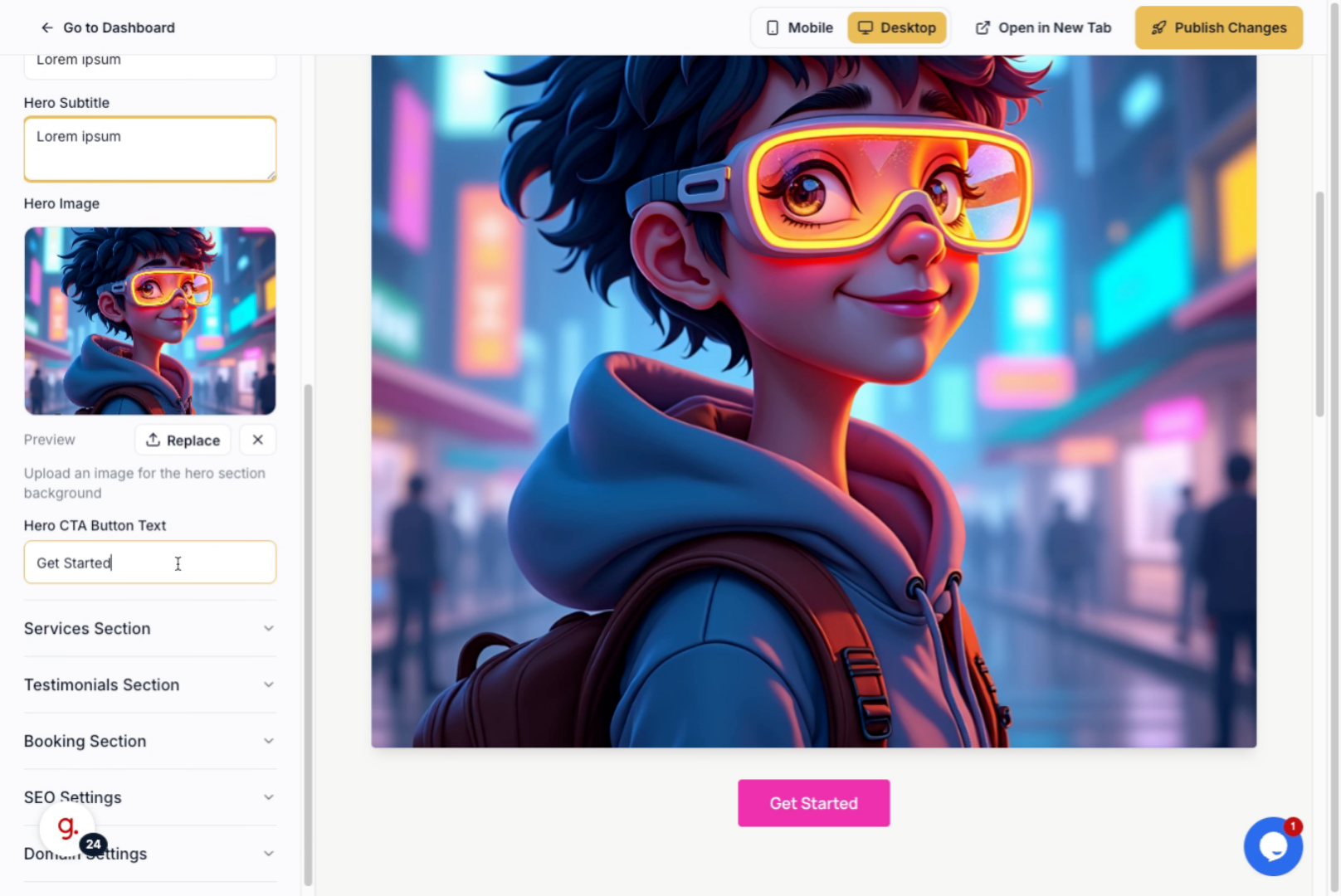
15. Click the Services Section to configure the offerings displayed on your storefront.
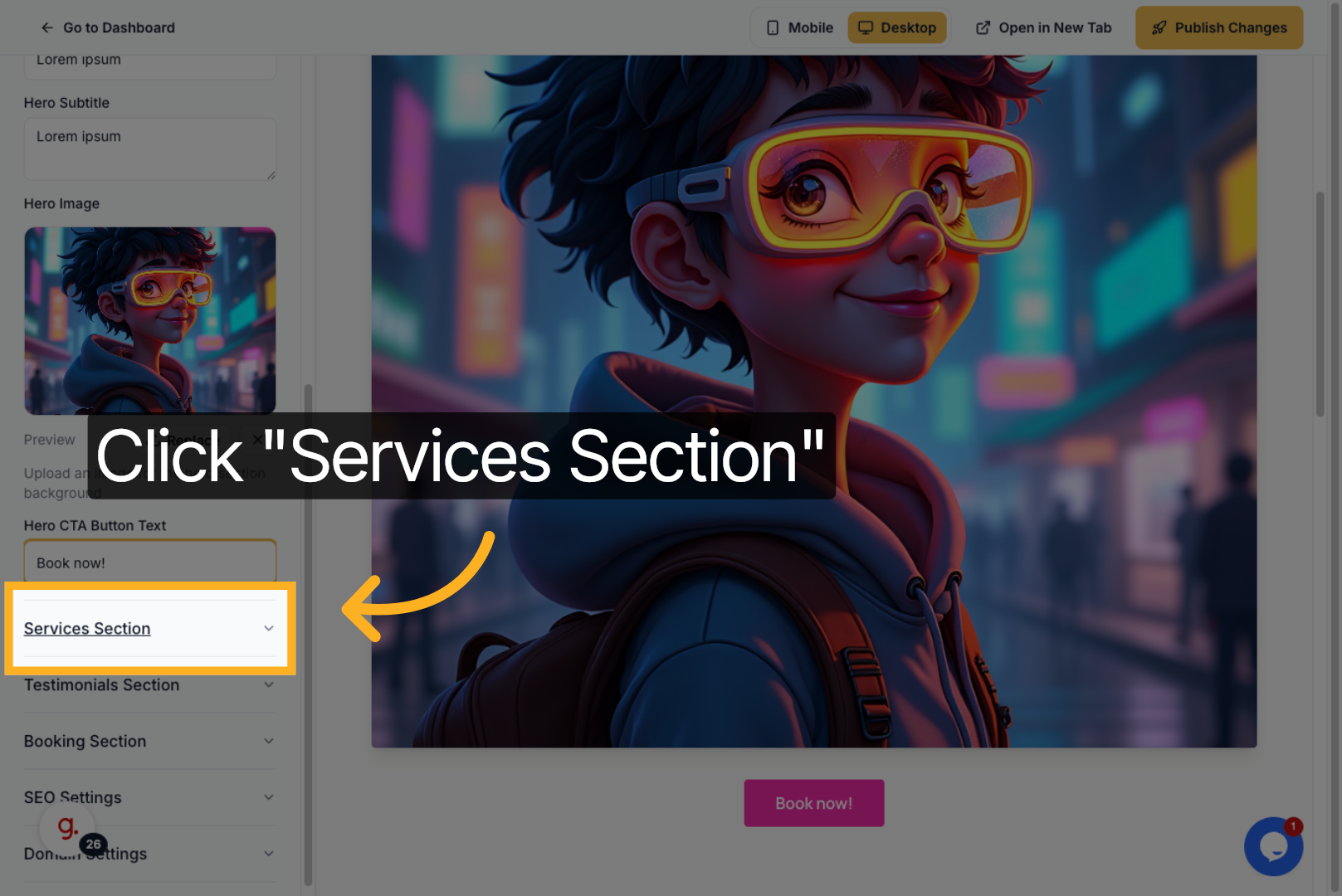
16. Click the Testimonials Section to manage customer feedback and reviews shown on your site.
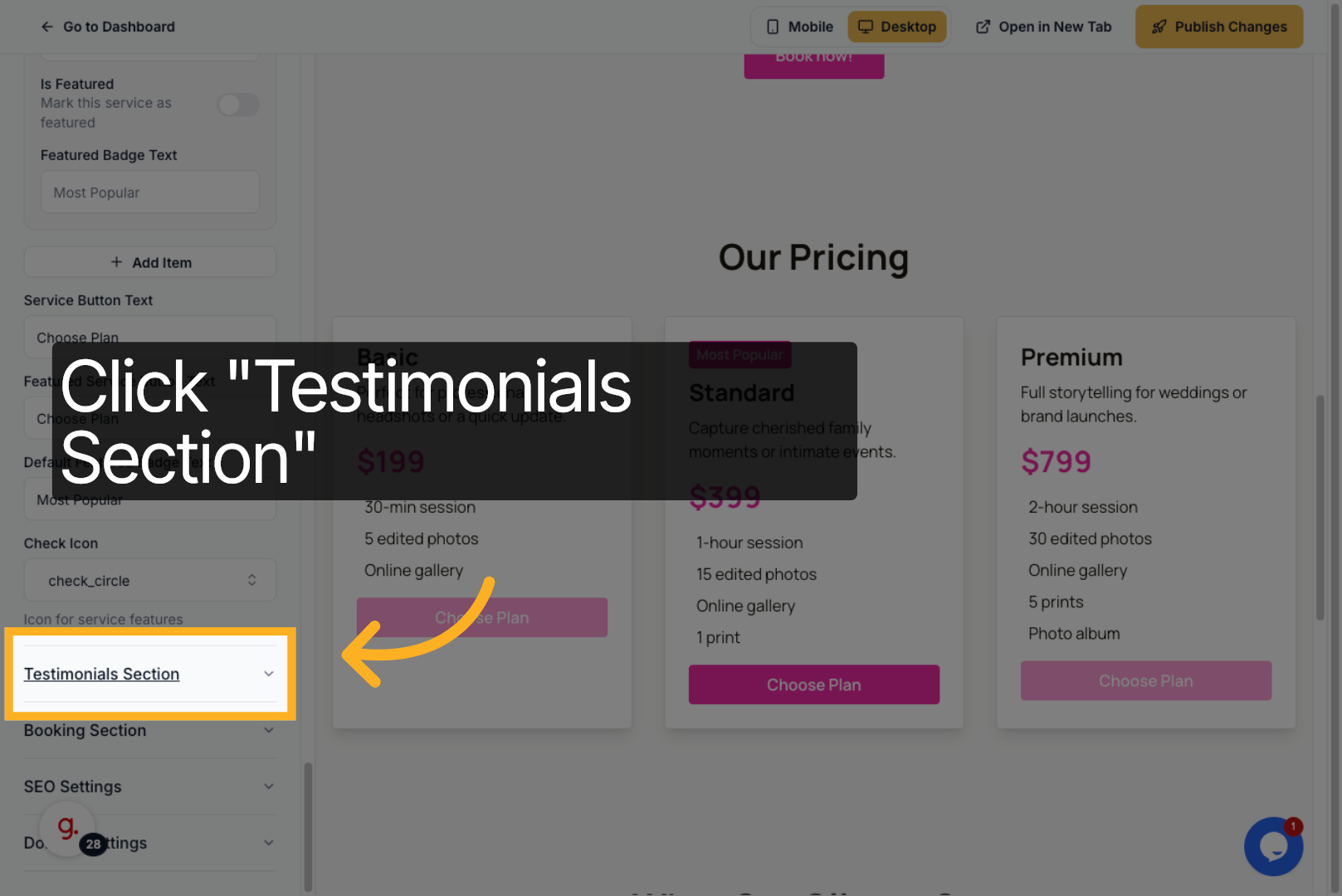
17. Click the Booking Section to set up appointment or reservation features for your website.
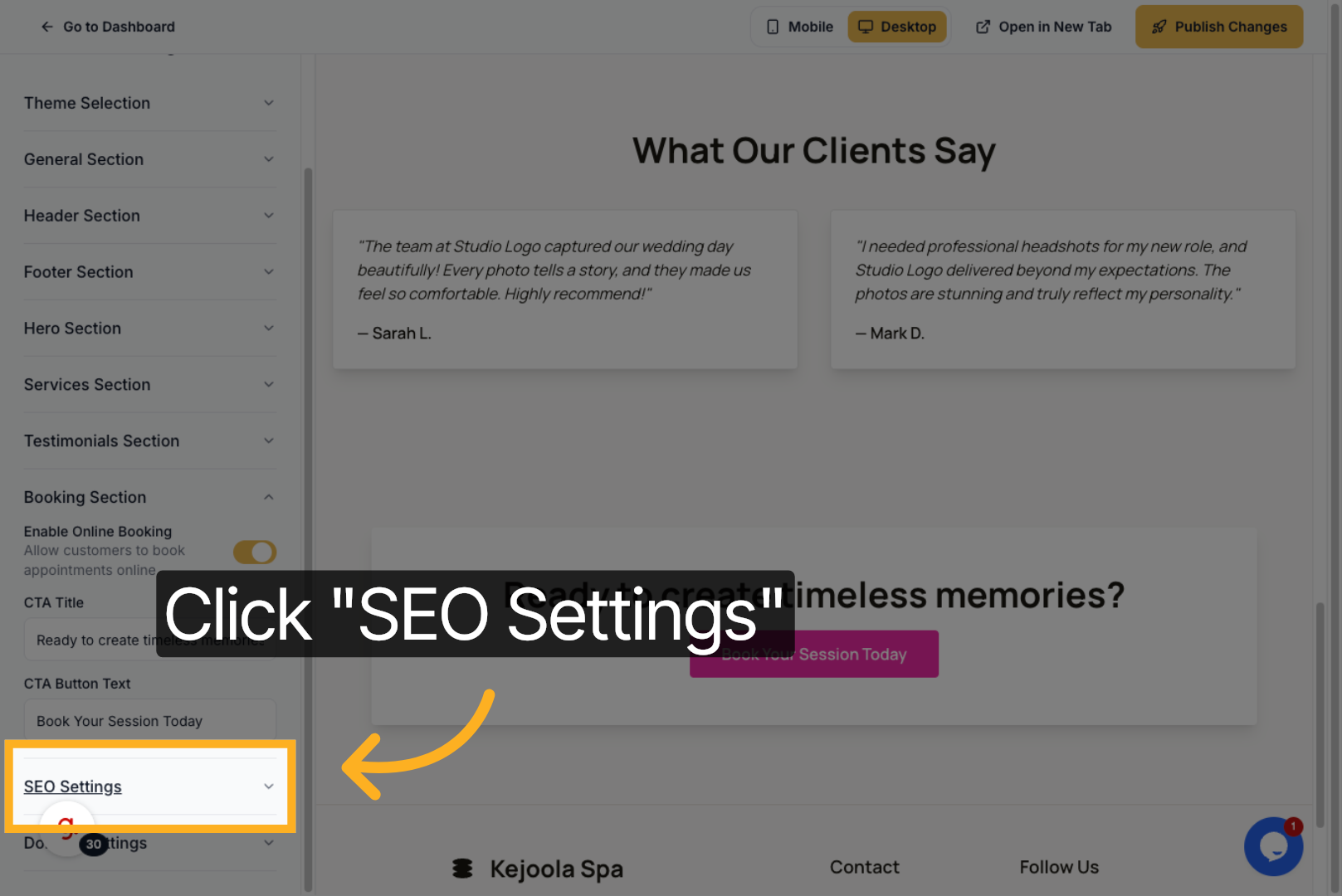
18. Click the SEO Settings to optimize your site for search engines and improve visibility.
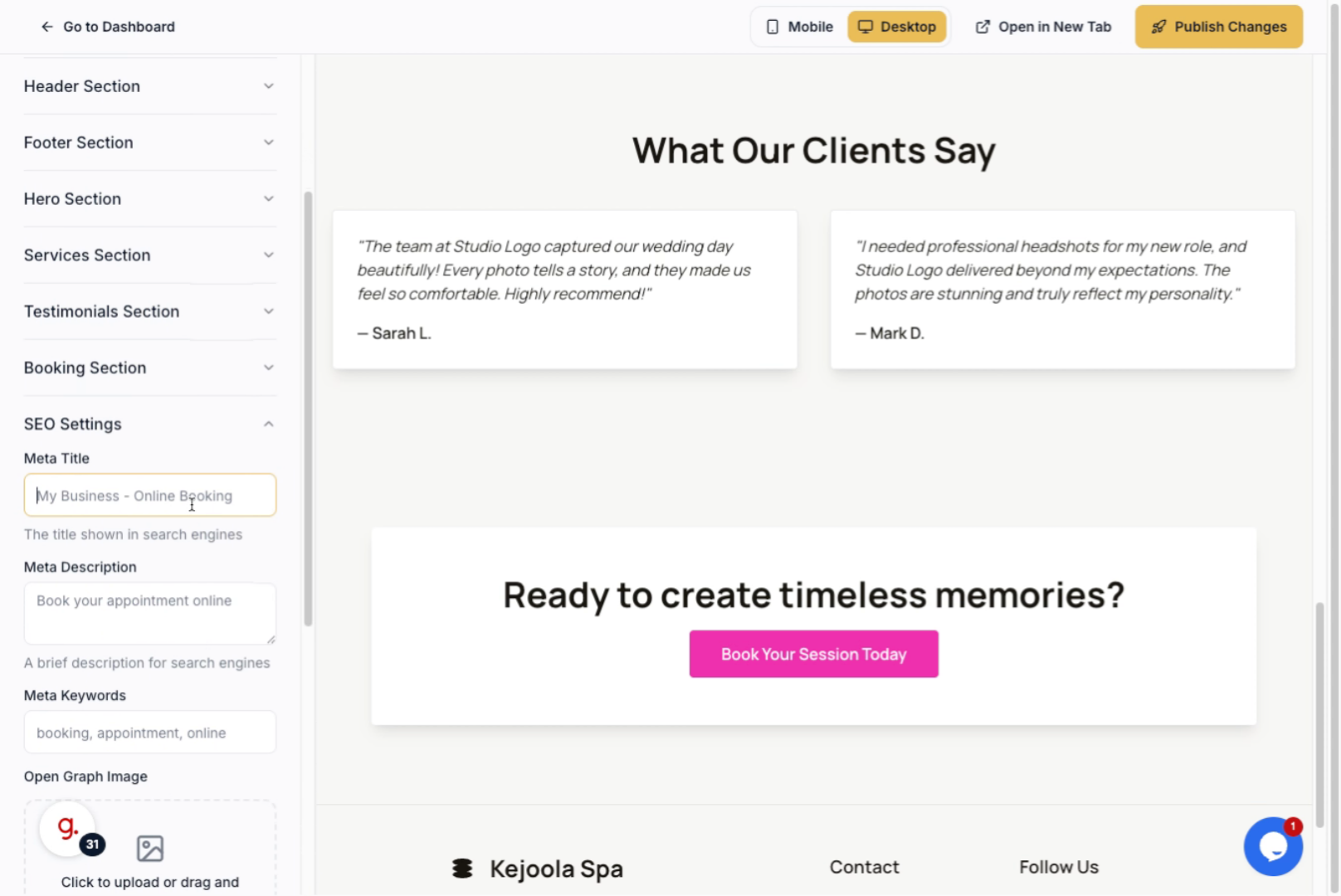
19. Enter a concise meta title that reflects your website's content and brand.
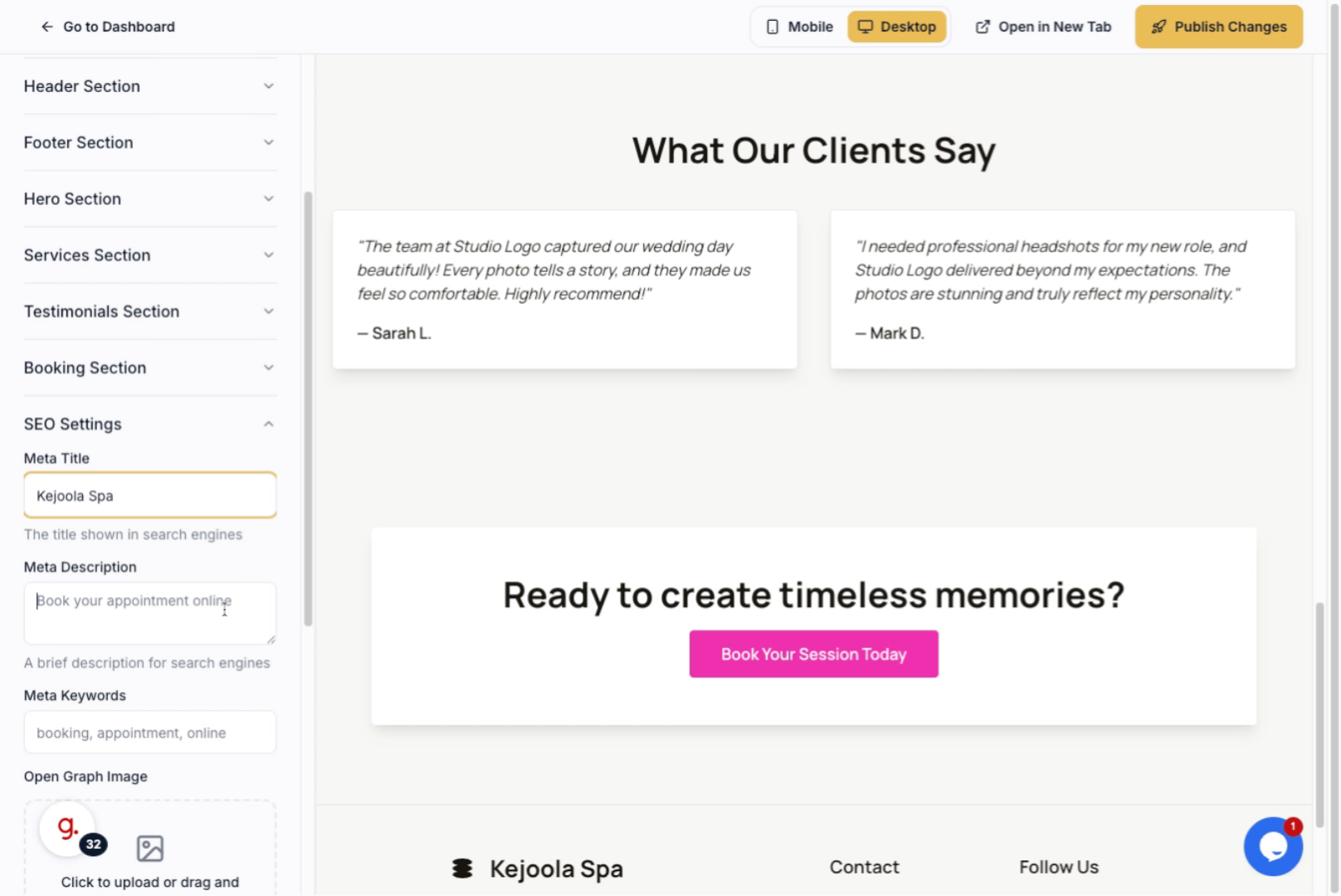
20. Enter a brief meta description that accurately describes your site to improve SEO.
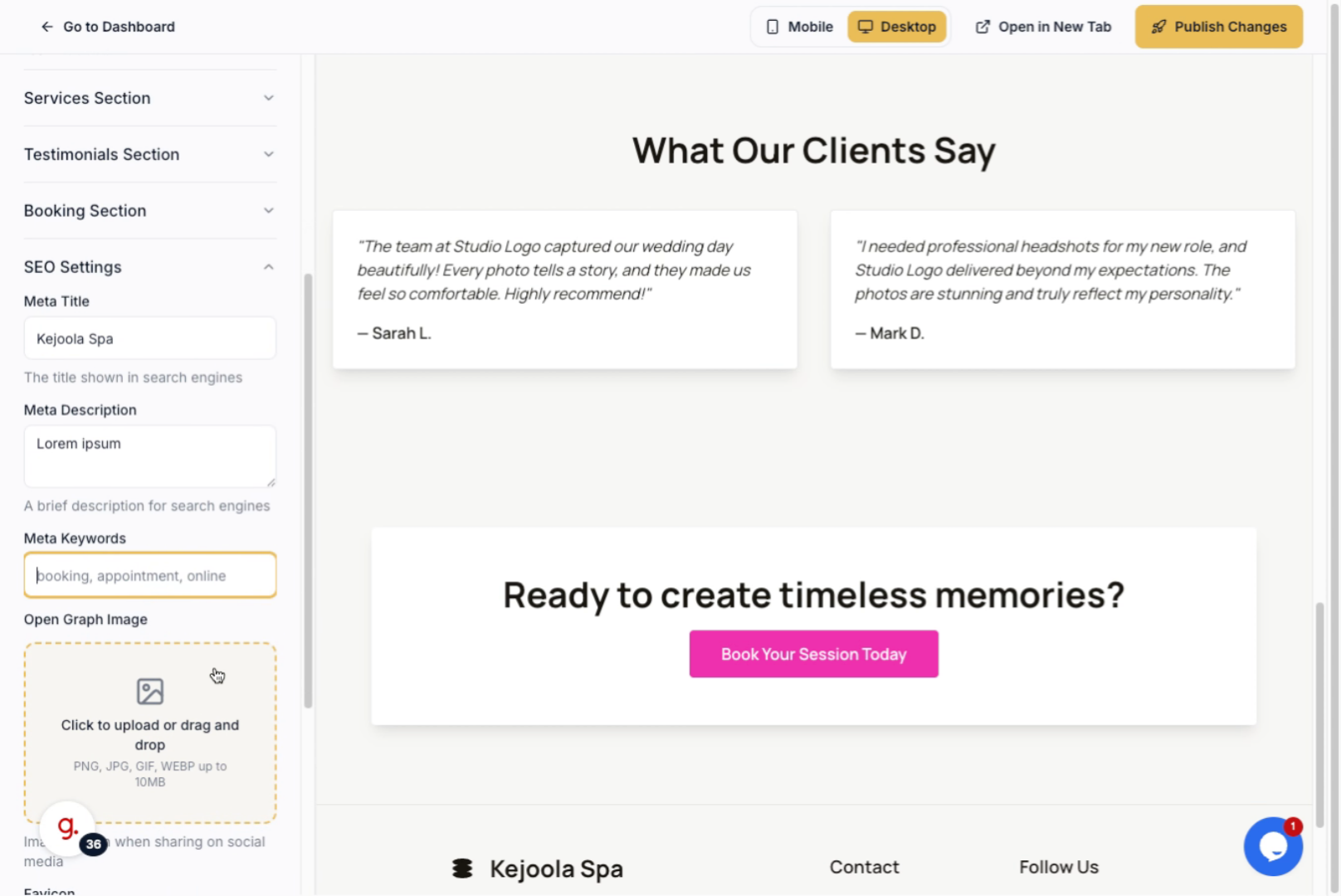
21. Enter keywords related to your business, such as booking and spa, to enhance searchability.
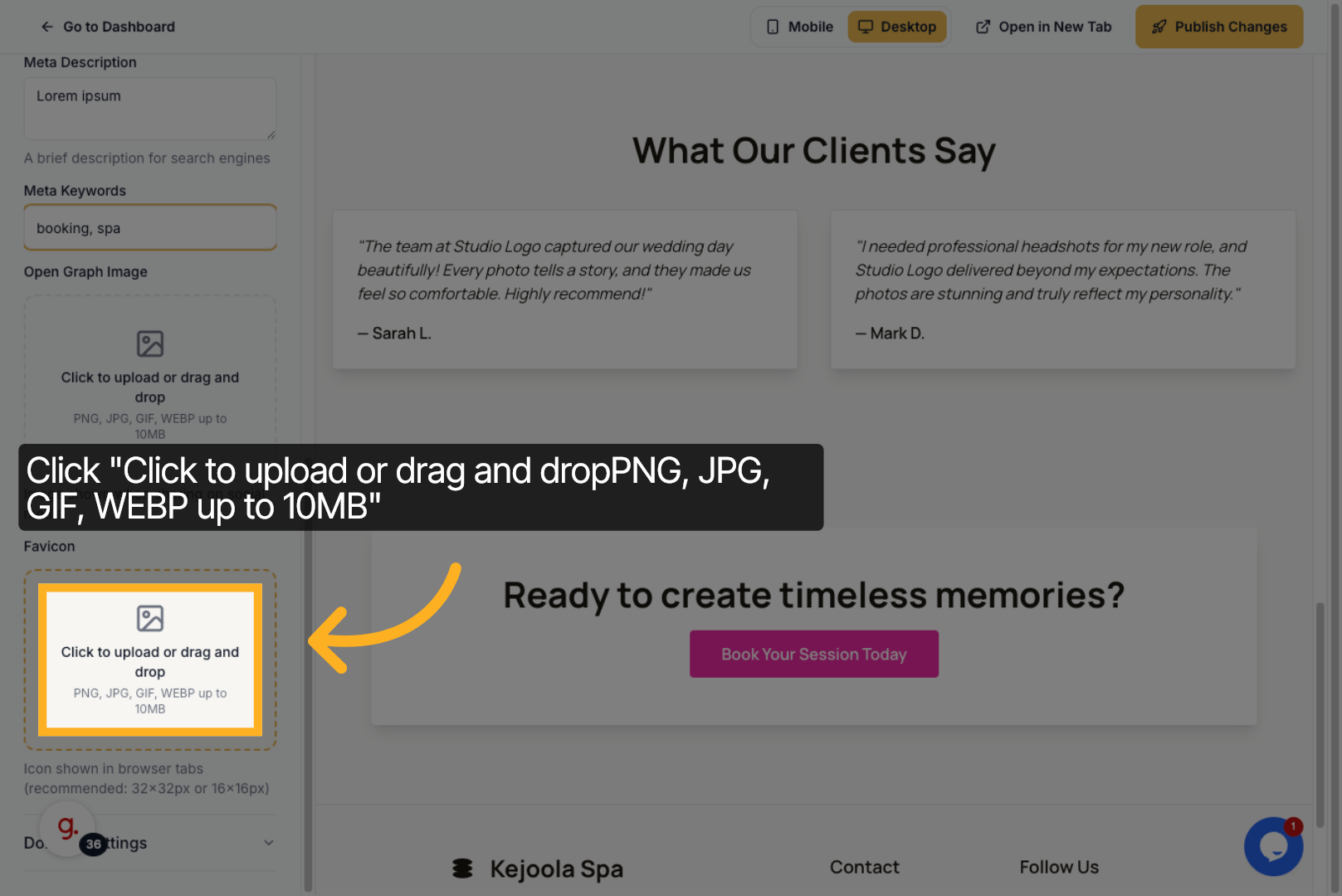
22. Click the upload area to add or drag and drop a favicon image for your website.
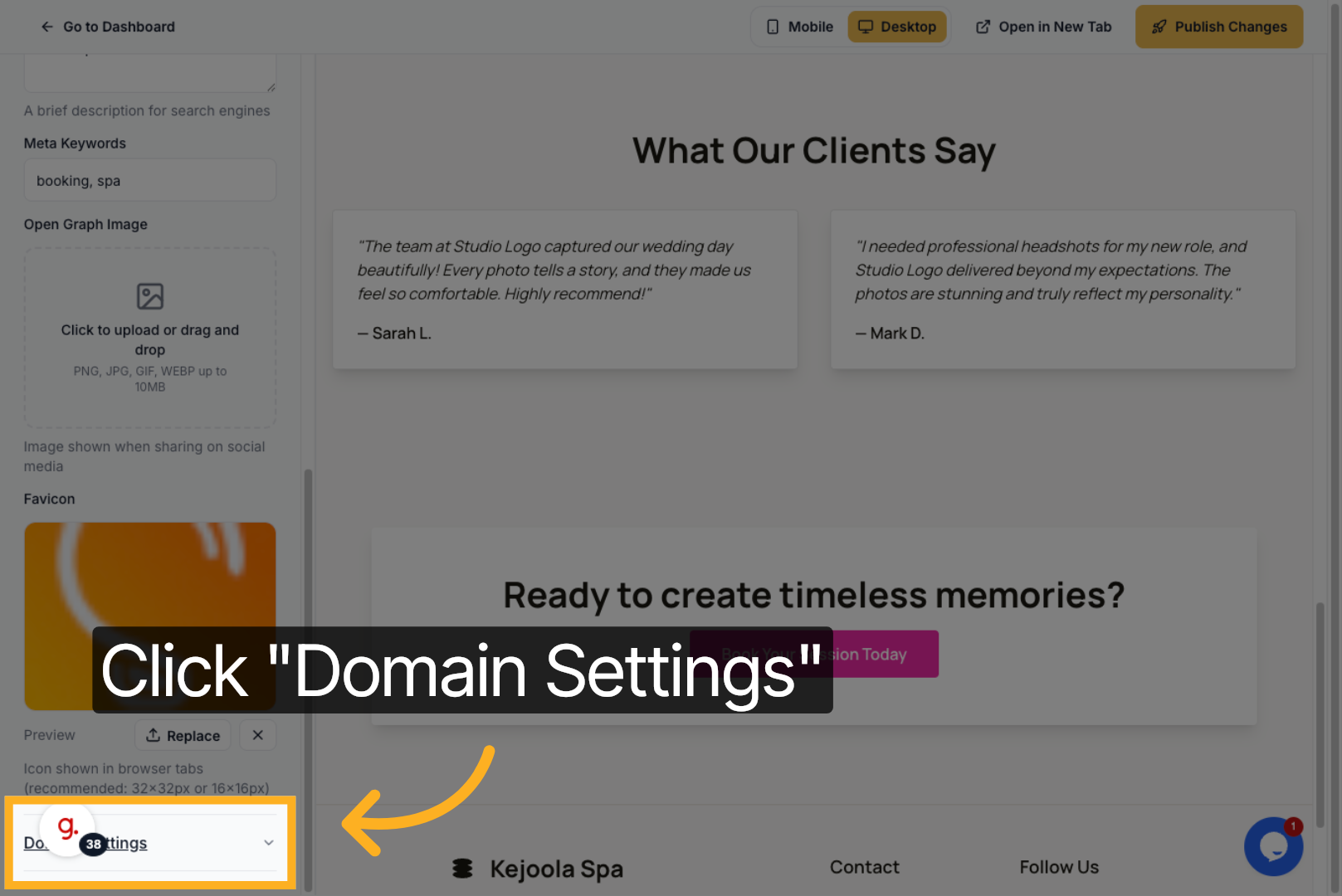
23. Click the Domain Settings to configure your website's domain and related options. You may change the kejoola subdomain that fits to your branding or you can also use your own domain.
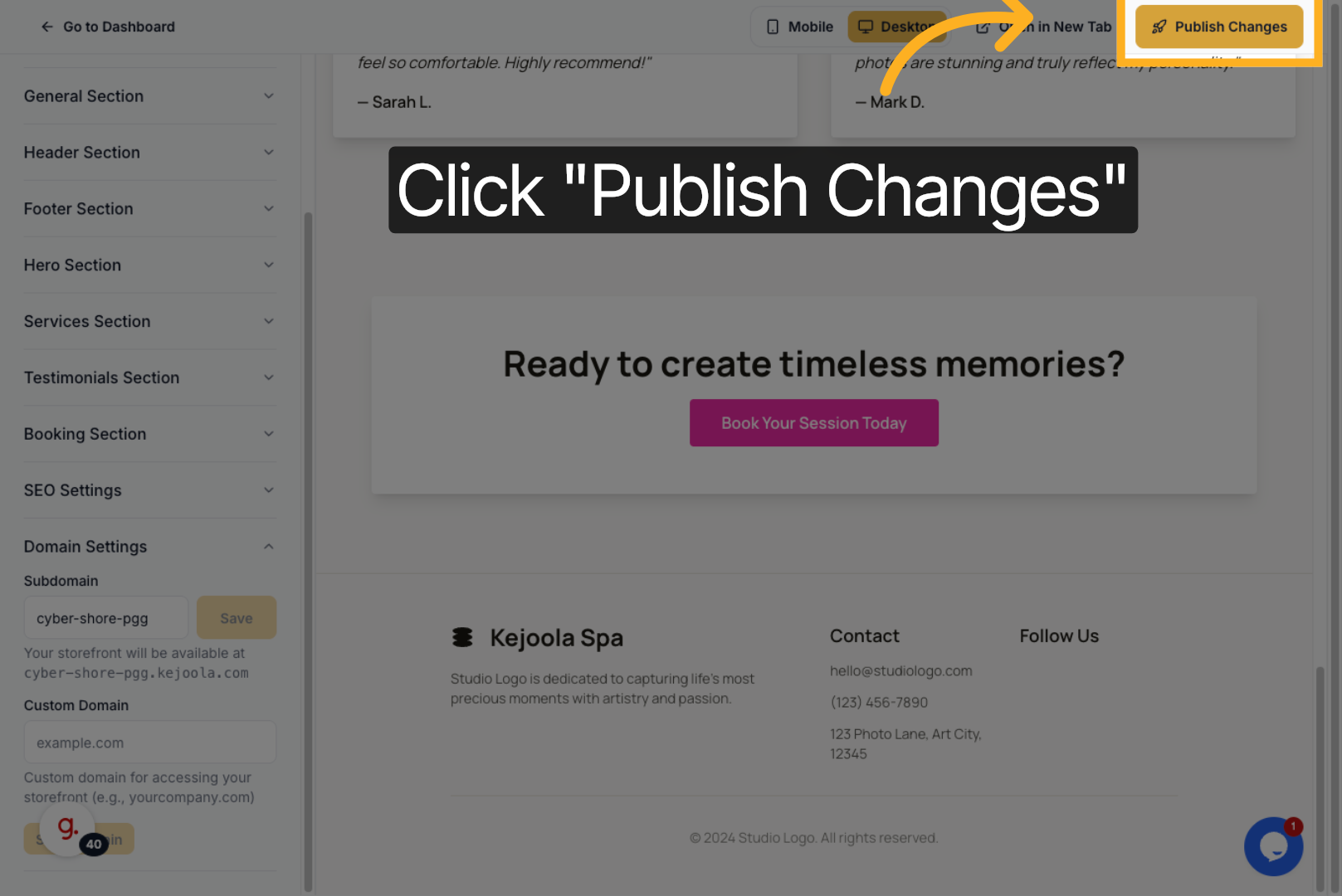
24. If you're satisfied with your website, you may publish it by clicking Publish Changes to save your customizations and make your website live.
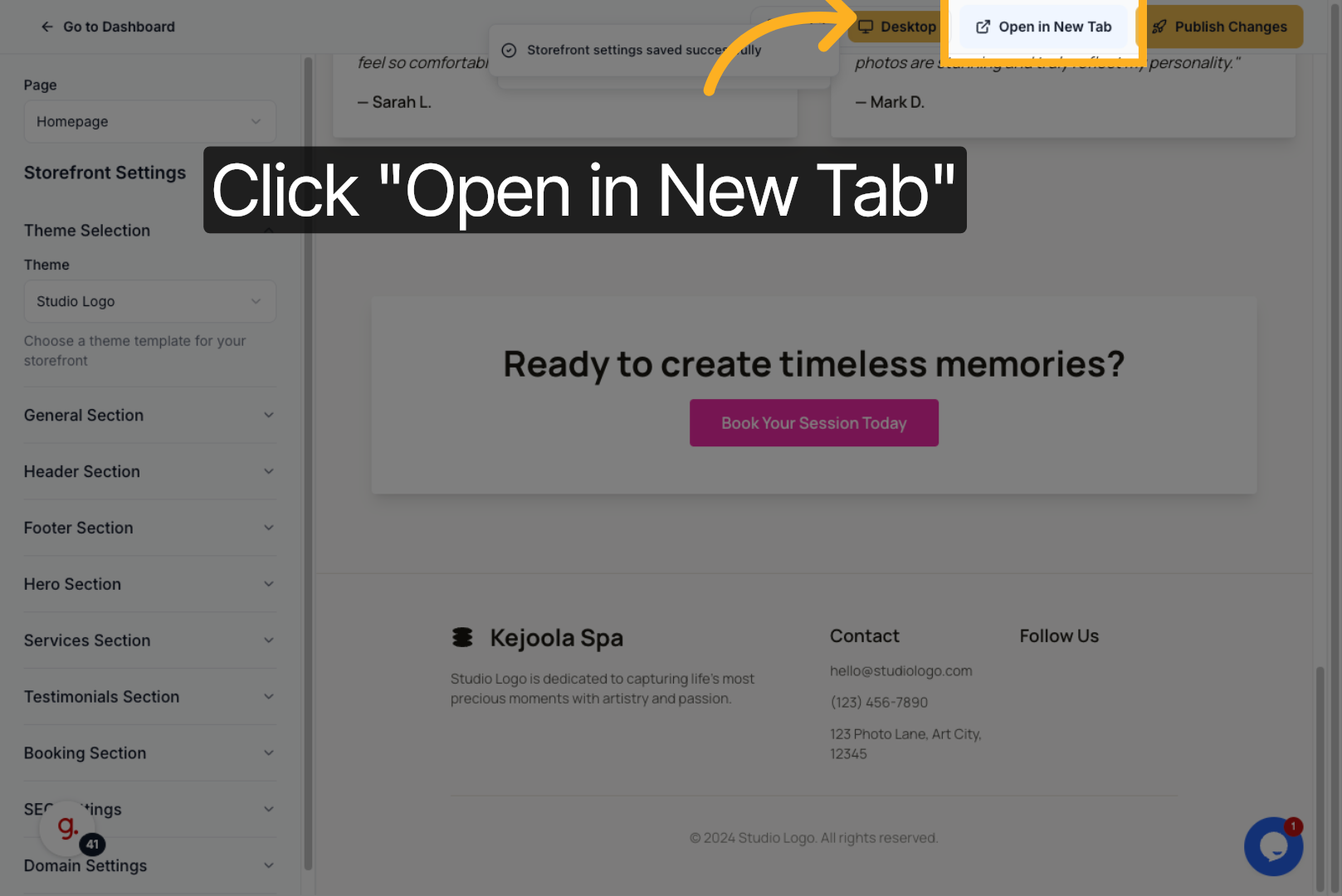
25. Click Open in New Tab to view your published website and verify your storefront.
You have successfully customized your storefront by selecting themes, uploading images, and configuring key sections. Your website is now published and ready for visitors, with SEO settings optimized for better search visibility.